
Last Updated: 08th August 2025
Applies to:
- Solar Installer users
- Enterprise users
How to access preferences
Click the gear icon in the top-right corner of the home screen.
- From the dropdown, select Preferences.
Once you're in the Preferences section, you'll see a navigation menu on the left side of the screen.
General
Margin
These settings, only editable by account administrators, give you control over the financial aspects of your quotes.
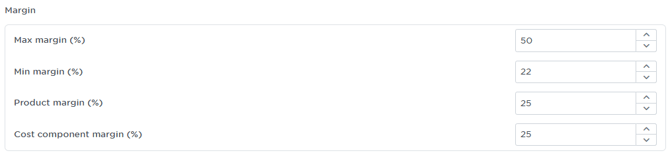
- Max margin (%): The maximum profit margin a sales team member is able to apply to any proposal.
- Min margin (%): The minimum acceptable profit margin for any proposal.
- Product margin (%): The default profit margin that will be applied to all products within your proposals.
- Cost component margin (%): The default margin applied to cost components like labour, freight, or other miscellaneous expenses.
- When you've finished, click 'Save' to ensure your changes are applied.
Proposal
The Proposal section lets you set default terms for your quotes.
-
Workmanship warranty (years): Set the default number of years for the workmanship warranty you offer on your installations.
-
Proposal validity (days): This is the default number of days that a proposal remains valid before it expires.
- When you've finished, click 'Save' to ensure your changes are applied.
Solar technology design
This section deals with specific financial details related to solar projects.
-
Residential solar export rate: Set the export rate (also known as a feed-in tariff) for residential projects.
-
Business solar export rate: Set the export rate for commercial or business projects.
- When you've finished, click 'Save' to ensure your changes are applied.
Project Lead Time
Here you can define the estimated timelines for different types of projects.
-
Residential Project Lead Time: This is the default number of days from opportunity creation to project completion for residential jobs.
-
Business Project Lead Time: This is the default number of days from proposal acceptance to project completion for commercial jobs.
-
The purpose of these inputs is for correctly forecasting rebates. I.e. if you create an opportunity on the 10th of December and your lead time is 30 days - then the STC's will be calculated as if the installation was completed in January the next year. This automatically impacts the STC quantity (reduced in this example) to align with reality to save you needing to think about these key incentive transion periods.
- When you've finished, click 'Save' to ensure your changes are applied.
Suppliers
Products
This is where you authorize suppliers for the physical products in your proposals (e.g., solar panels, batteries).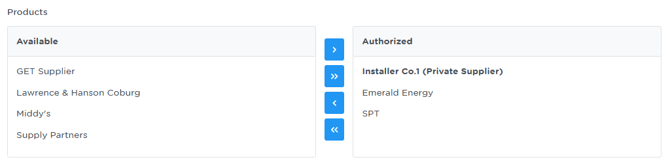
-
To authorize a product supplier, select a supplier from the Available column and click the single right arrow
>to move it to the Authorized column. -
To authorize all product suppliers, click the double right arrow
>>. -
To de-authorize a supplier, select it from the Authorized column and click the single left arrow
<. -
To de-authorize all product suppliers, click the double left arrow
<<. - When you've finished, click 'Save' to ensure your changes are applied.
Finance
This is where you authorize finance providers for your proposals.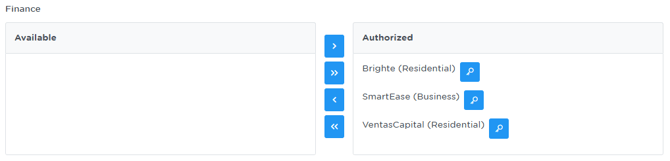
-
Move finance providers between the Available and Authorized columns using the arrow buttons.
-
The magnifying glass icon 🔍 allows you to add a finance supplier's API key (Not applicable to all finance suppliers).
- When you've finished, click 'Save' to ensure your changes are applied.
Incentive
This is where you authorize the providers of incentives and rebates.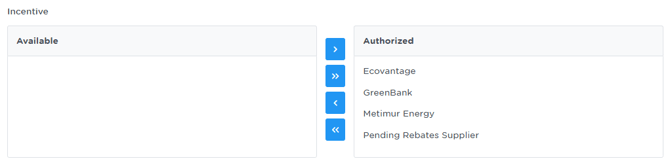
-
Move incentive providers between the Available and Authorized columns using the arrow buttons.
-
You can authorize a specific supplier or use a generic "Pending Rebates Supplier" option if the provider isn't yet confirmed.
- When you've finished, click 'Save' to ensure your changes are applied.
Incentives
Incentives
This is where you manage the incentives that can be applied to your proposals.
Note: Ensure all rebate suppliers you want to see products for are added before adding incentives- see Suppliers -> Incentives section above .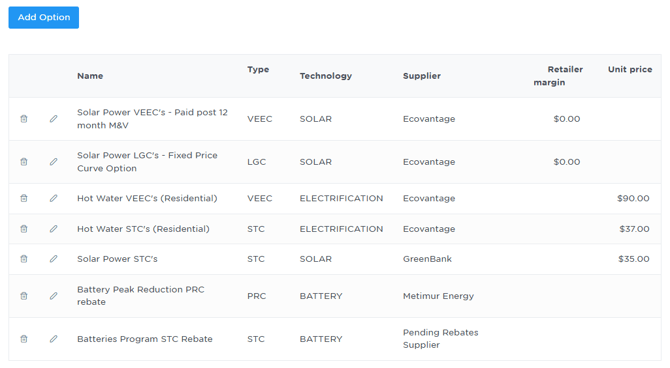
-
Add Option: Click this button to add a new incentive to your list.
The table displays all of the incentives you have configured.
-
Name: The name of the incentive (e.g., "Solar Power STC's").
-
Type: The type of incentive, such as Small-scale Technology Certificates (STCs), Victorian Energy Efficiency Certificates (VEECs), or Large-scale Generation Certificates (LGCs).
-
Technology: The type of technology the incentive applies to (e.g., SOLAR, ELECTRIFICATION, BATTERY).
-
Supplier: The supplier or provider of the incentive.
-
Retailer margin: This automatically reduces the certificate value factored in your proposal.
*Note for this input to be used, the ‘Certificate price override’ input must be empty. -
Unit price: Any price input below will override the rebate supplier's price and any margin entered. Therefore, even if your suppliers price changes, your price in your budgets and proposals will not. Leave this input blank if you want your certificate price to automatically use your supplier's price.
*Note: This input does not impact solar LGC’s or Solar VEEC’s - Not seeing the rebate supplier you want here? - make sure they are added first in the "Suppliers" section.
- When you've finished, click 'Save' to ensure your changes are applied.
To manage an existing incentive:
-
Click the pencil icon to edit the details of an incentive.
-
Click the trash can icon to delete an incentive.
Simulation
About Solar Power Losses & Simulation
The Simulation section is where you define the energy production losses used in your proposals. These percentages account for real-world factors that can reduce the output of a solar energy system.
It's important to note that any changes made to these parameters will not affect existing opportunities unless you re-save the solar areas within that specific opportunity. Additionally, some inputs may have minimum values set by SpendWatt for quality control purposes. Therefore, you cannot reduce these values below the set minimums.
Note: The following losses and gains are calculated automatically by SpendWatt and are not editable in this section:
-
Panel negative temperature coefficient
-
Panel degradation
-
Inverter efficiency
-
Inverter clipping
-
Furthermore, performance gains from bifacial solar panels are also estimated automatically.
General Losses
These are system-wide losses that are applied regardless of the inverter technology used.
-
Solar Power Losses: This is a descriptive label for the settings in this section.
-
AC wiring: Accounts for energy lost as electricity travels from the inverter to the main switchboard.
-
AC system availability: Accounts for energy lost due to system shutdowns, maintenance, or other unexpected downtime.
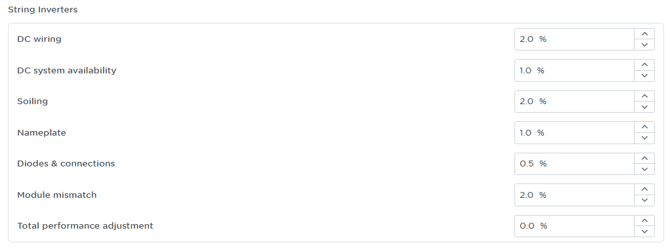
String Inverters
These settings apply specifically to projects that use traditional string inverters.
-
DC wiring: Accounts for energy lost as electricity travels from the solar panels to the inverter.
-
DC system availability: Accounts for downtime specific to the DC side of the system.
-
Soiling: Accounts for the reduction in energy production due to dust, dirt, or other debris on the solar panels.
-
Nameplate: Accounts for potential discrepancies between a module's nameplate rating and its actual performance.
-
Diodes & connections: Accounts for energy lost in the electrical components and connections within the solar panels and array.
-
Module mismatch: Accounts for energy lost due to slight variations in the electrical characteristics of individual solar panels in an array.
-
Total performance adjustment: This is an overall adjustment factor to fine-tune the final performance simulation.
Microinverters
These settings apply specifically to projects that use microinverters.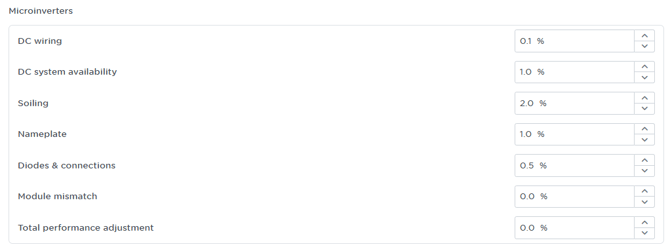
-
DC wiring: Accounts for energy lost as electricity travels from the solar panels to the inverter.
-
DC system availability: Accounts for downtime specific to the DC side of the system.
-
Soiling: Accounts for the reduction in energy production due to dust, dirt, or other debris on the solar panels.
-
Nameplate: Accounts for potential discrepancies between a module's nameplate rating and its actual performance.
-
Diodes & connections: Accounts for energy lost in the electrical components and connections within the solar panels and array.
-
Module mismatch: Accounts for energy lost due to slight variations in the electrical characteristics of individual solar panels in an array.
-
Total performance adjustment: This is an overall adjustment factor to fine-tune the final performance simulation.
Inverters with DC Optimisers
These settings apply specifically to projects that use inverters with DC optimisers.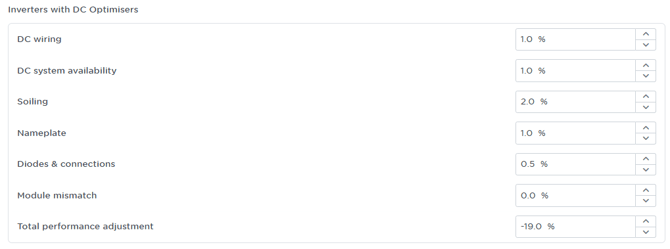
-
DC wiring: Accounts for energy lost as electricity travels from the solar panels to the inverter.
-
DC system availability: Accounts for downtime specific to the DC side of the system.
-
Soiling: Accounts for the reduction in energy production due to dust, dirt, or other debris on the solar panels.
-
Nameplate: Accounts for potential discrepancies between a module's nameplate rating and its actual performance.
-
Diodes & connections: Accounts for energy lost in the electrical components and connections within the solar panels and array.
-
Module mismatch: Accounts for energy lost due to slight variations in the electrical characteristics of individual solar panels in an array.
-
Total performance adjustment: This is an overall adjustment factor to fine-tune the final performance simulation.
Automation > Residential
Configure Automation Settings
To streamline your workflow, SpendWatt allows you to pre-define the default products and electrical configurations used when generating an instant electrification proposal.
General Settings
The General section defines the foundational electrical parameters for your automated designs:
-
API Key: This unique identifier is used to link your SpendWatt automation form to external platforms or your company website.
-
Electricity Phase: Set the default phase (1 phase or 3 phase) that the system should assume for new residential opportunities.
-
Export Limit (kVA/kW): Enter the standard solar export limit required by the local DNSP to ensure automated designs remain compliant.
Product Mapping & Defaults
Use the product tabs to tell the automation engine which hardware to select for each electrification scenario. For each category, you will map a "Site Item" (the customer's current setup) to an "Upgrade Item Type" and a "Default Product."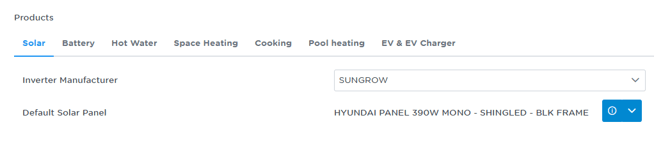
-
Solar & Battery: Select your preferred Inverter Manufacturer and Default Solar Panel. For batteries, selecting a manufacturer allows the system to automatically scale the storage capacity based on the site's energy profile.
-
Hot Water & Space Heating: Map existing systems (e.g., Gas Storage or Electric Resistance) to your preferred Heat Pump models.
-
Cooking & Pool Heating: Select the default induction cooktops or pool heat pumps to be included in full-home electrification quotes.
-
EV & EV Charger: Choose the default electric vehicle or charger model to appear when an EV scenario is toggled on.
Note: While these settings automate the "first draft" of your proposal, you can still manually swap or refine these products within an individual Opportunity if the site requires a bespoke solution.
Payments > Residential
Cash payment preferences
These settings allow you to control which financial metrics are shared with your customers based on specific performance thresholds.
- Only display the years payback to the customer when it is less than:
This setting hides the "payback period" if the calculated time to recoup the investment exceeds the number of years you enter here. This ensures customers only see payback figures when they are commercially attractive. - Only display the IRR % to the customer when it is greater than:
This allows you to set a minimum Internal Rate of Return (IRR) percentage. The IRR will only be visible to the customer if the project's projected return meets or exceeds this threshold. Note the IRR cashflow period is over 10 years.
Finance payment preferences
These settings help you manage how monthly financial outcomes and loan options are presented to customers who choose to finance their system.
- Only display $ monthly cashflow to the customer when it exceeds:
This input field allows you to set a specific dollar threshold for monthly savings. The monthly cashflow figure will be hidden from the customer unless the calculated savings exceed this amount. - Only display finance options with positive cashflow to the customer (if any):
When this toggle is enabled, the system will filter out any financing plans that result in a negative monthly cashflow. This ensures that the customer is only presented with options where their energy savings outweigh the loan repayments.
Payment options
This section allows you to manage the specific payment methods available to your customers. You can customize existing options or add new ones to suit your business model.
-
Add cash option: Creates a new payment entry for customers paying upfront.
-
Add finance Option: Adds a new financing or loan-based payment method to the list.
-
Default: Selecting the radio button next to an option sets it as the primary payment method shown to the customer.
-
Name: The label for the payment method as it will appear on the proposal (e.g., "Cash payment").
-
Documentation: This field is populated when a finance company provides specific terms, conditions, or informational documents, which will then appear here for reference.
-
Type: Indicates whether the method is categorized as "CASH" or "FINANCE".
-
Deposit: Sets the percentage of the total system cost required as an upfront payment.
-
Min Finance ($): Specifies the minimum project value required for a finance option to be available.
Congratulations! You’re now ready to create your first proposal.
Recommended article to help you create your first home or business proposal: Creating a Proposal - Start to Finish
Pro Tip: Completing the Automation settings above can reduce proposal creation time—for example, full home or business solar, battery & electrification proposals can be ready in under 3 minutes!