
Getting started
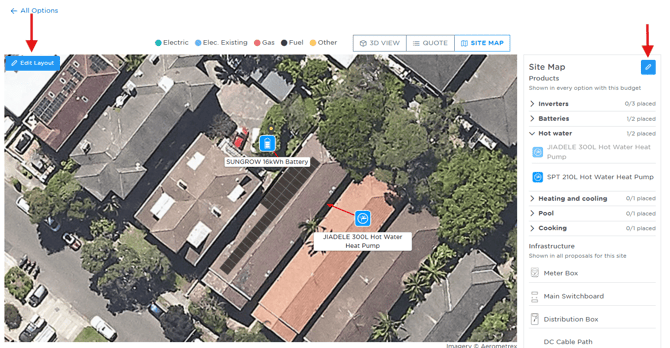
Open the Site Map view from the Proposals tab, next to 3D View and Quote. There are two places to make changes:
- Edit Layout (top left of the map): set the background image used in your proposals, or adjust the solar layout. Press the save 'floppy disc' in the top left panel to save the layout.
- Place site items (pencil icon in the Site Map panel on the right): add products, infrastructure and custom annotations to the map. Press save at the bottom to save what has been placed, or cancel to revert your changes.
Adding and removing icons
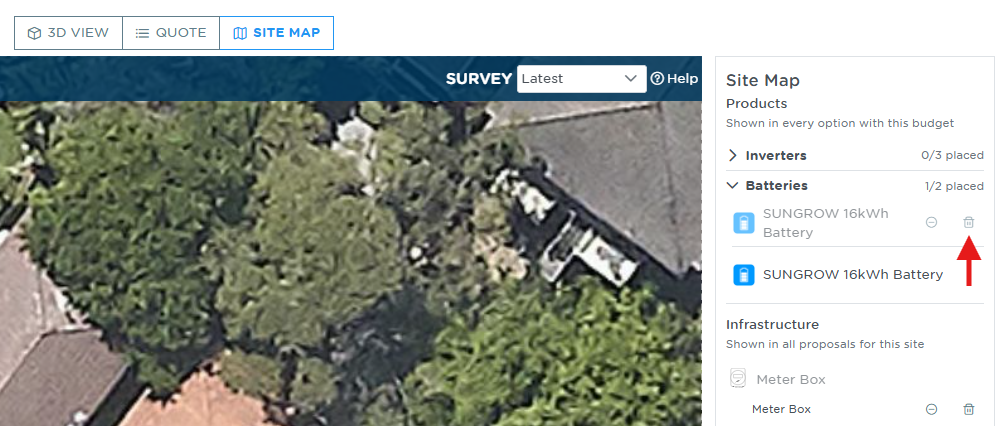
Placement of any icons on the map is optional. Click and drag icons from the Site Map panel onto the map to add them. To remove, click the 'bin' icon in the Site Map panel.
Add or remove leader lines
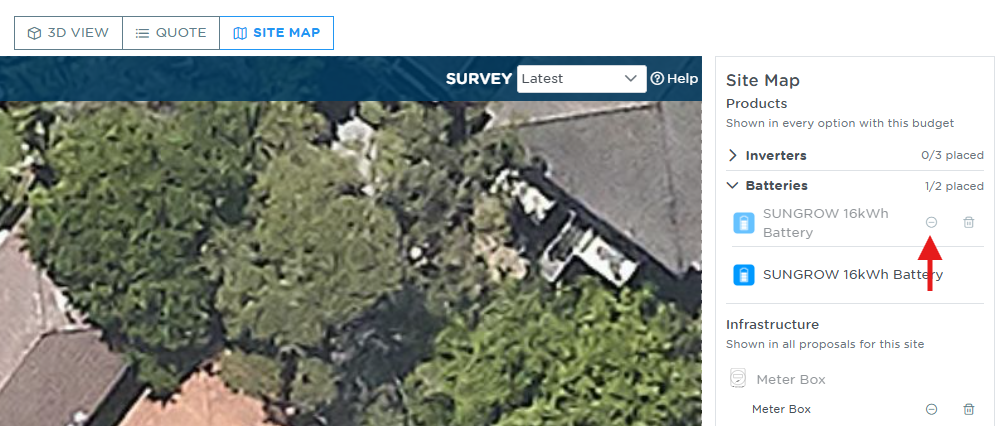
You can use leader lines to more accurately show where the product is being installed. Click the leader line icon next to the related product in the panel to add a line from the icon to the map. Click the same icon again to remove the line. Leader lines can also be moved around the map.
Track what you've placed
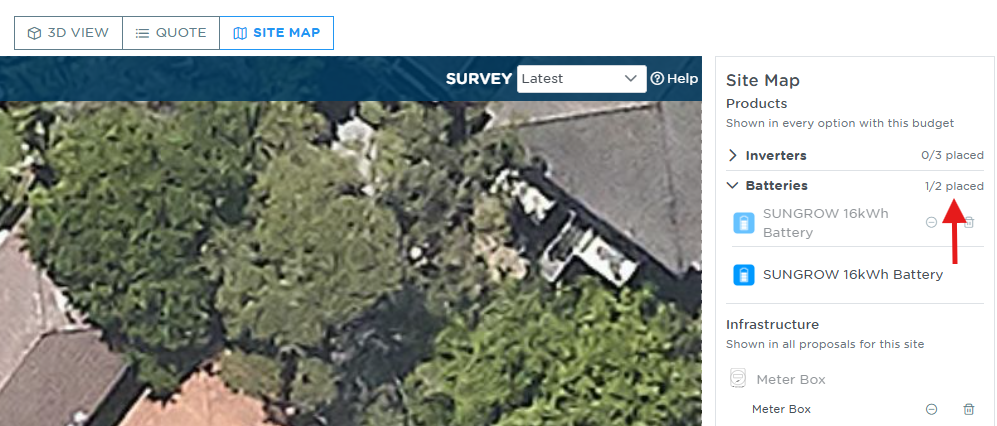
Each product group shows how many items you've placed, e.g. "0/2 placed". You don't need to place them all - if it works best for your design, you can choose to edit the icon's label and change the wording to best describe what is being installed.
Products, infrastructure, and custom annotations
The Site Map panel has three sections. Each one behaves differently when you switch between options.
1. Products
In the Site Map panel, you only see the products relevant to the option you're viewing. For example, if the option includes 2 hot water heat pumps, you'll see 2 to place.
Where you place a product icon carries across to all options that have the same product, so you only need to place it once.
2. Infrastructure
Icons placed for infrastructure, like the meter box, appears in every option. Place it once and it stays put across all of them.
Multiple of the same infrastructure item can be placed - simply click and drag the relevant item onto the map.
3. Custom annotations
Custom annotations belong to the option you add them to, and don't appear in other options.