
Step 1 - Navigate to an opportunity
-
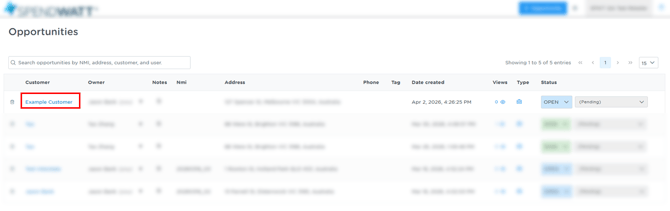
On the Dashboard, open the opportunity you want to update.
-
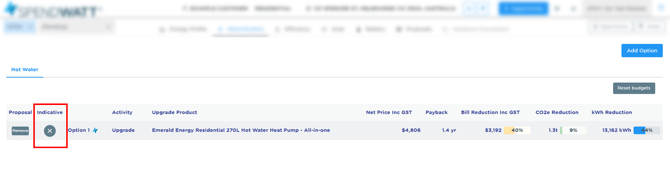
This feature applies to any non-indicative option(s) in the proposal.
Step 2 - Mark Opportunity as Won
-
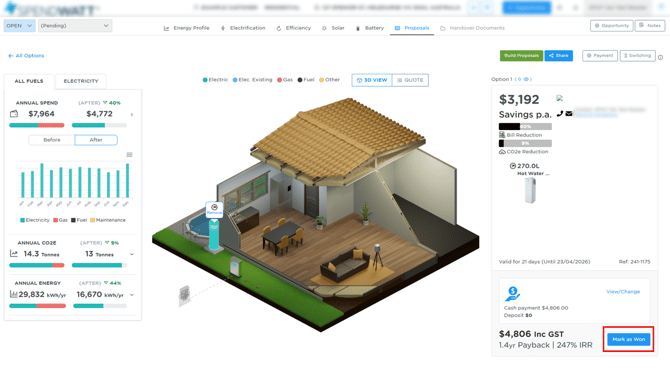
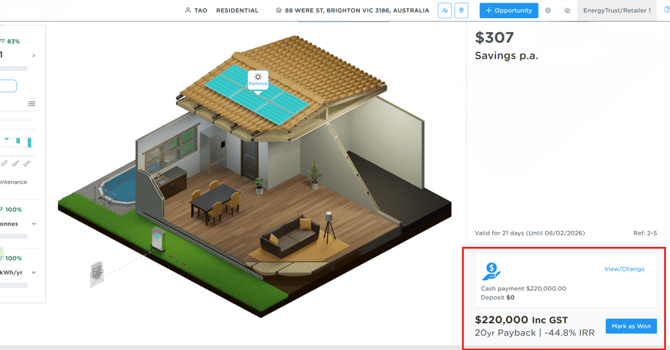
On the bottom-right of the proposal page, click the Mark as Won button.
-
In the confirmation dialog box, check the required confirmation boxes and toggle:
- I've provided the customer with a quote and terms regarding the sale, delivery, installation, maintenance and/or customer support of these products.
- The customer has accepted those terms and agreed to be bound by them.
- A signed copy of the quote has been received.
- Toggle the "Send confirmation email to customer" switch on or off depending on your preference.
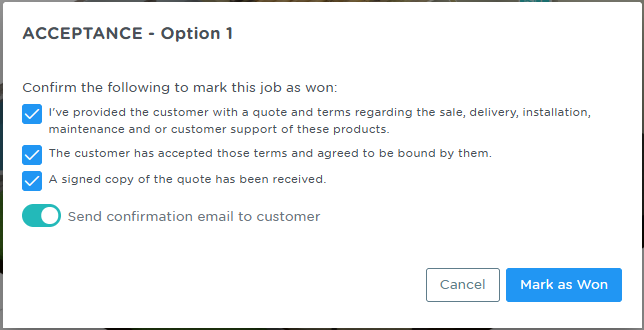
- Click the Mark as Won button to finalize. The order will now be considered won.
Managing or Cancelling a Won Order
-
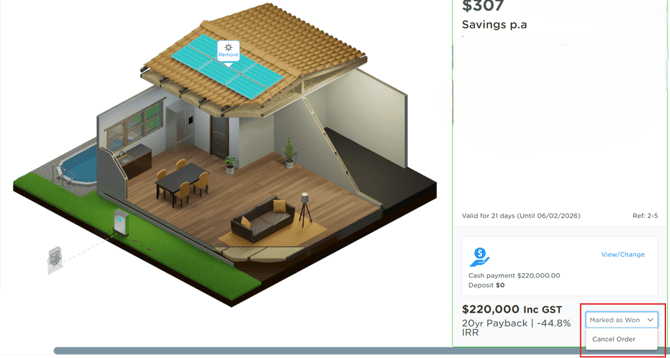
The previous Mark as Won button will now become a dropdown bar that allows the installer to cancel it.
-
Cancelling the order will bring it back to the previous stage.
Notes
-
The opportunity must have existing items and items should not be indicative.
-
Confirmation emails are sent to both the installer and the customer (if the confirmation email toggle is enabled) when an order is marked as won.