Last Updated: 17th March 2026
Applies to:
- Solar Installer users
- Enterprise users
An Indicative Proposal is a preliminary quote based on estimated data. It is often used in the early stages of a sales cycle when site-specific details (like exact roof measurements or final hardware availability) haven't been fully confirmed.
Note: If a proposal is shared with a customer with this Indicative Proposal status, then the call to action / button the customer can select on the proposal is 'Request Consultation'. Which if clicked, sends an email to the opportunity owner (like a quote request) requesting they provide a Non-Indicative Proposal.
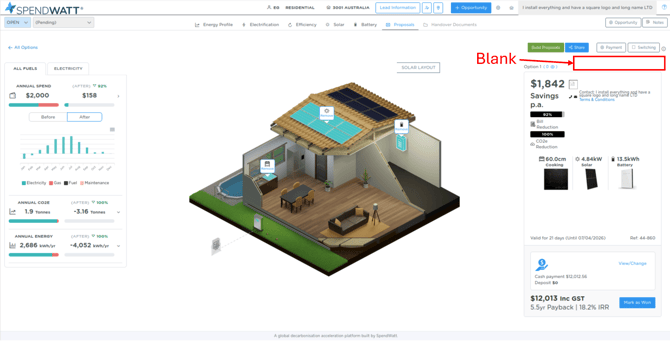
A Non-Indicative Proposal is a finalised, firm offer that you are ready to stand behind for a contract.
Note: If a proposal is shared with a customer with this Non-Indicative Proposal status, then the call to action / button the customer can select on the proposal is 'Sign & Accept Proposal'. Which if clicked, marks the opportunity as Won and sends an email to the opportunity owner notifying them of the purchase commitment.
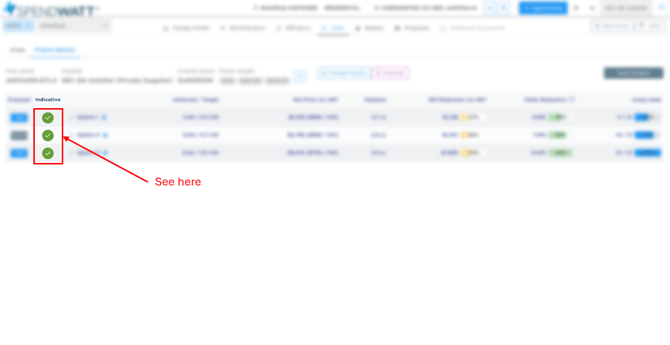
When viewing your project options, you can easily see the status of each proposal in the "Indicative" column.
Green Checkmark: The proposal is currently marked as Indicative.
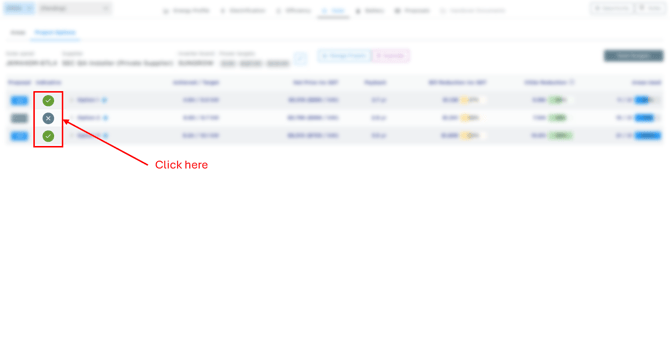
You can change the status of a proposal directly from the project list view.
-
Navigate to the Project Options tab.
-
Locate the Indicative column next to the proposal options.
-
Click the icon (Checkmark or 'X') to toggle the status to Non-Indicative.
Note: That that any proposal bundle that includes one or more options set to Indicative results in the whole bundle being indicative. It's not until all options within the selected bundle are set as Non-indicative, does the bundle then become Non-indicative.
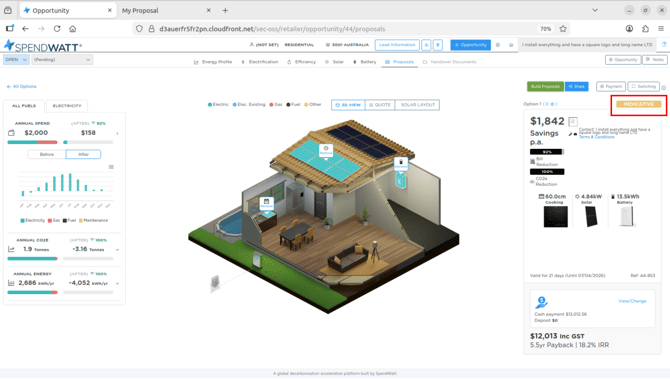
When you are in the proposal tab and looking at the different bundles / options it's easy to see at a glance if the selected option is indicative or not base on the yellow indicative flag shown below. See a Indicative bundle example below:
 See a Non-indicative example below: