
Cost Management for Automated Budgets
The Cost Management section allows installer administrators to configure their default pricing structure so that budgets are automatically populated when an opportunity is created.
The goal of this feature is to allow installers to set up their typical job pricing once, so future proposals require minimal manual input.
Instead of entering line items every time a proposal is created, the system automatically adds the relevant budget lines and pricing based on the technologies included in the proposal.
This allows installers to focus on customising a proposal for the specific home, rather than performing repetitive data entry that can introduce errors.
Although this section can take some time to configure initially, once set up it becomes extremely powerful — effectively allowing you to quote once and reuse that structure across all future opportunities.
Structure of Cost Management
Cost Management is divided into two sections.
1. Cost Components
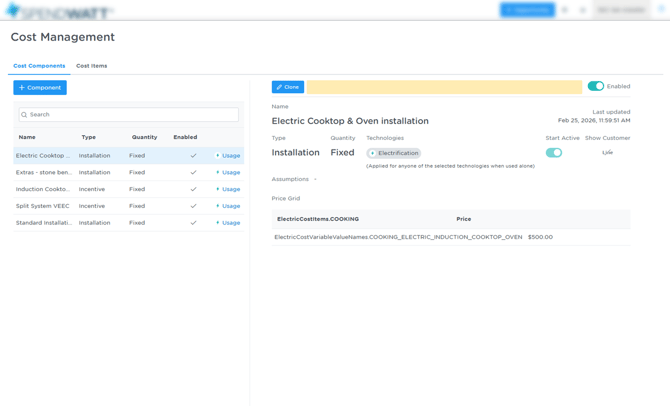
Cost Components generate the budget line items that are automatically added to proposals.
These determine:
-
What line items appear in the budget
-
When they appear
-
What price they use
-
Whether they are enabled by default
For example, you might configure cost components for:
-
Solar installation labour
-
Electrical upgrades
-
Battery installation
-
Switchboard upgrades
These will automatically appear in the proposal budget when relevant technologies are selected.
2. Cost Items
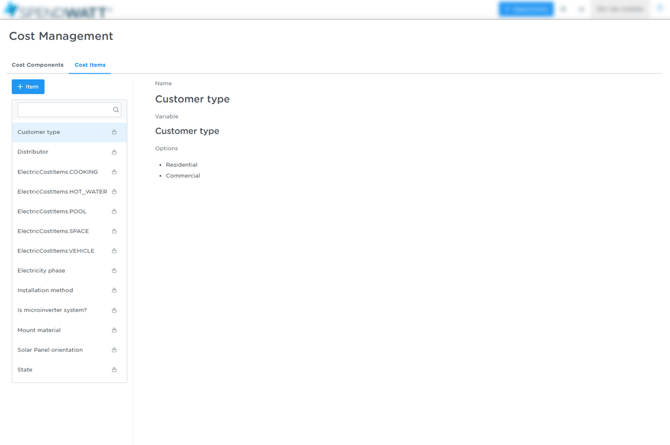
Cost Items provide the logic and conditions used by Cost Components.
They allow you to control when pricing should apply, for example:
-
Different pricing for single phase vs three phase electricity
-
Price changes based on system size
-
Different conditions based on site characteristics
Cost Items therefore allow Cost Components to support dynamic pricing scenarios rather than a single fixed price.
See further details of how Cost Items work towards the bottom of this article.
Creating a Cost Component
When creating a new Cost Component, the following fields are available.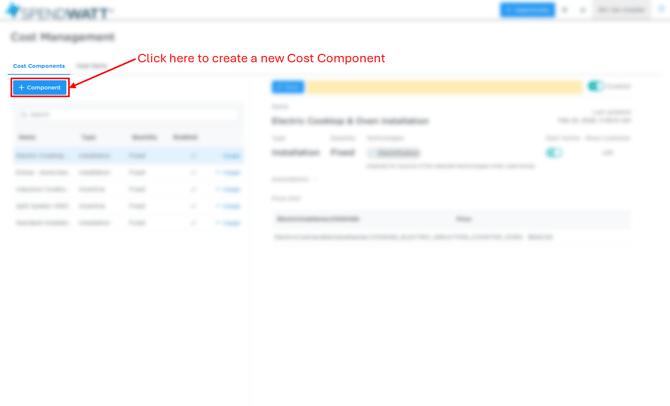
Type
Determines the type of budget line being created.
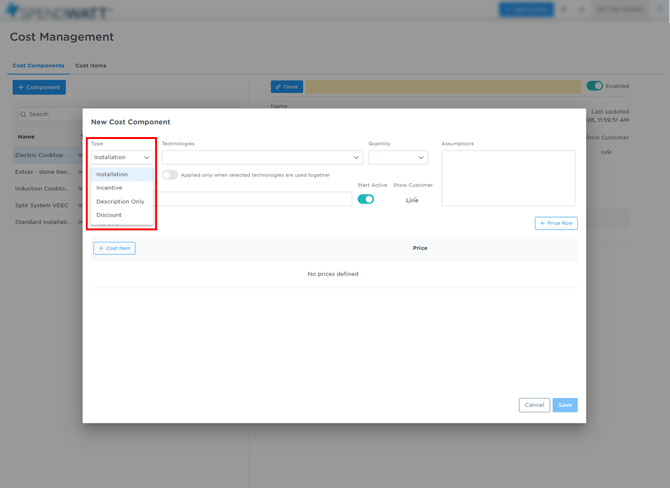
Examples include:
-
Installation
-
Material
-
Incentive
-
Discount
-
Description only
These behave differently within the proposal budget and affect how the total project cost is calculated.
See: Understanding the Different Budget Line Types
Technologies
Defines which technology the cost component applies to.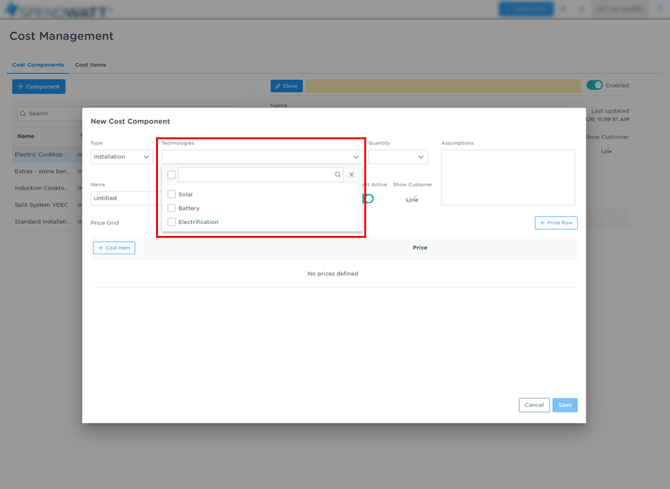
For example:
-
Solar
-
Battery
- Electrification (Heat pump hot water, Cooking upgrades etc)
If the cost component is related to solar installation, select Solar.
If it relates to electrification upgrades, select Electrification.
This ensures the budget line is only added when the relevant technology is included in the proposal.
Quantity
The Quantity field determines what drives the quantity column when this cost component line item shows in budget.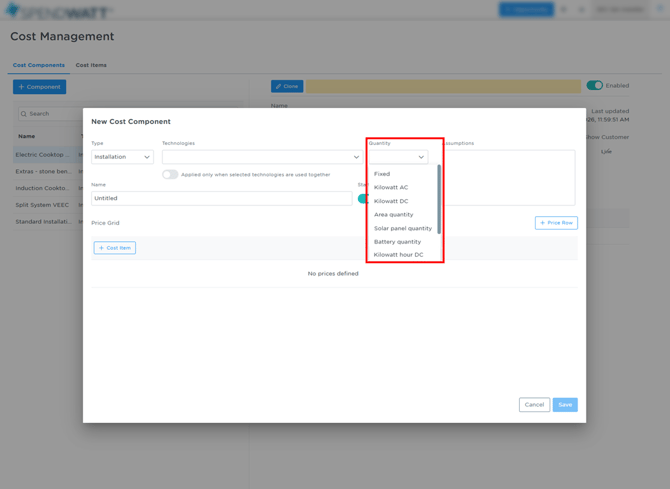
Examples include:
| Quantity Type | Behaviour |
|---|---|
| Fixed | Quantity will always be 1 |
| Panels | Quantity equals the number of solar panels |
| Other drivers | Depends on the selected technology |
This allows for dynamic pricing structures, such as charging per solar panel installed.
Assumptions
This field allows you to enter explanatory text that will appear in the customer proposal if the cost component is included.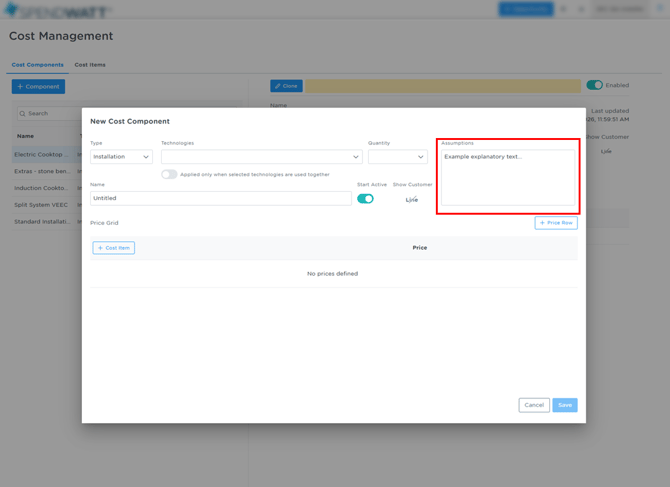
Name
The Name is the label that appears as the line item in the proposal budget.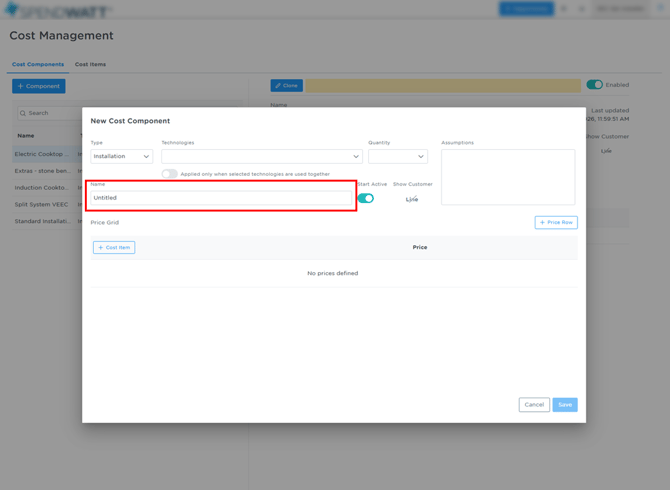 For example:
-
Solar installation labour
-
Switchboard upgrade
-
Battery installation
Start Active
This setting determines whether the budget line is enabled by default.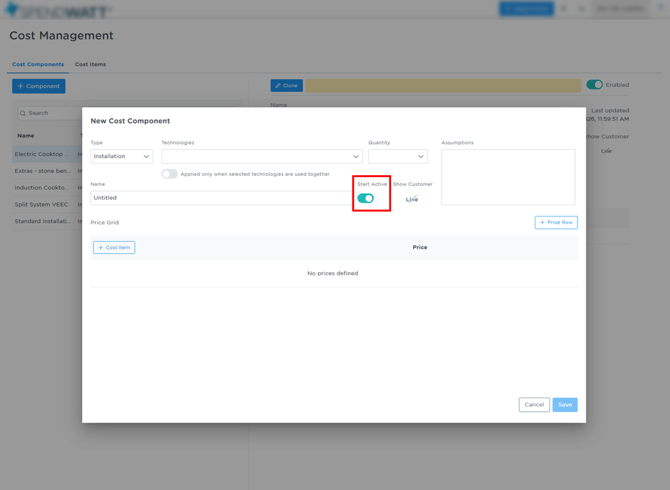
| Setting | Behaviour |
|---|---|
| On | Line item is included in the budget and contributes to the total price |
| Off | Line item appears in the budget but is greyed out |
This is commonly used for opt-in / opt-out pricing.
For example:
-
Optional extras
-
Additional services
-
Site contingencies
Show Customer
This controls what information the customer sees in the proposal.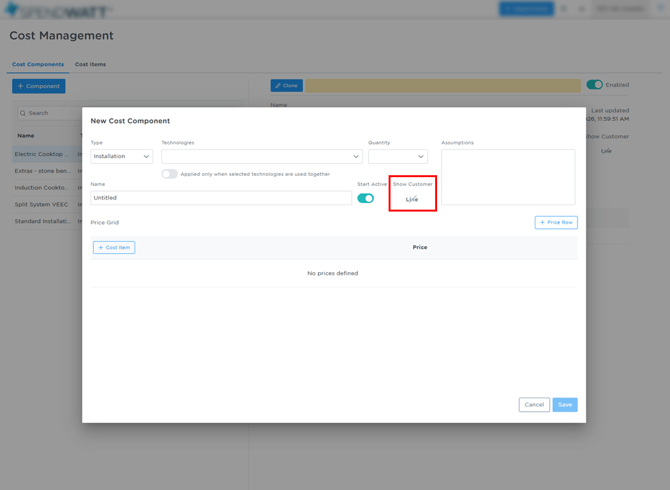
You can choose to display:
| Icon | Meaning |
|---|---|
| Line | Shows the description |
| # | Shows the quantity |
| $ | Shows pricing |
This allows installers to control how transparent the proposal appears to the customer.
+ Price Row
This is where the price for the cost component is defined.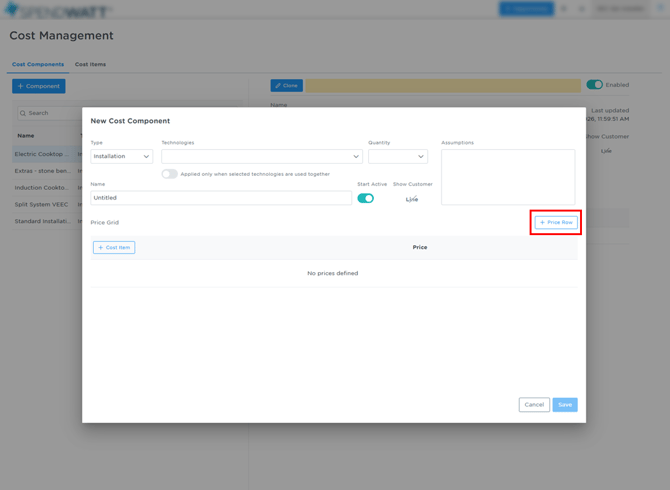
You can add multiple price rows to support different scenarios when combined with Cost Items.
+ Cost Item
Cost Items define the conditions that determine when a cost component is applied.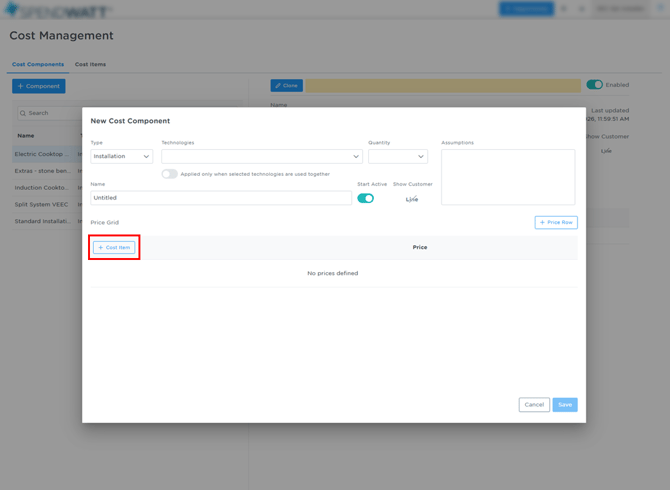
For example, you might create a rule where a cost component only appears when:
-
The property has three-phase electricity
-
A certain technology is selected
-
A specific distributor applies
This allows highly customised pricing logic.
Creating a Cost Item
Cost Items allow you to define conditional logic that determines when pricing should apply to a Cost Component.
This allows budgets to automatically adjust pricing depending on specific site or system characteristics, such as:
-
Number of solar panel areas (split arrays)
-
Electricity phase
-
Installation method
-
Panel orientation
-
Mounting type
- Plus many more included by default - see the list in the Cost Item tab for full list
Cost Items are typically created before configuring Cost Components, so that they can be referenced when defining pricing logic.
The following example demonstrates how to create a Cost Item to apply different pricing depending on the number of split solar arrays.
Step 1 — Navigate to Cost Items
From the Cost Management section, select the Cost Items tab.
Here you will see a list of all Cost Items currently available within your installer configuration.
Examples included by default may include:
-
Electricity phase
-
Installation method
-
Solar panel orientation
-
Split Arrays
If you want to add one that is not there by default then add a new item by selecting + Item.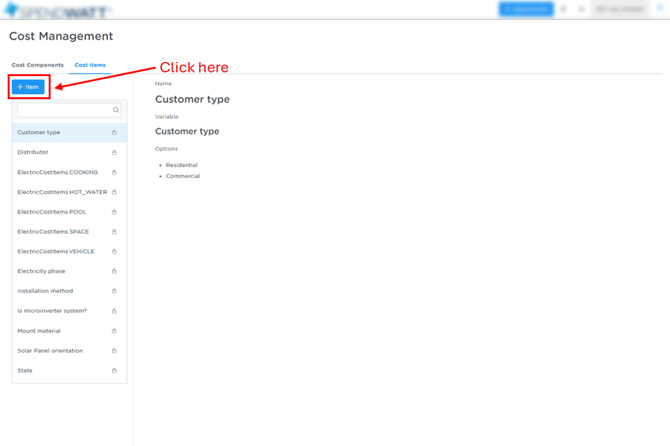
Step 2 — Define the Cost Item
When creating a Cost Item you will be asked to define:
Name
The label used to identify the given cost item.
In this example the Cost Item is named: Split Arrays
Variable
The system variable that will drive the pricing logic.
For this example we use: Solar area quantity
This allows the system to detect how many roof areas are used in the solar system design.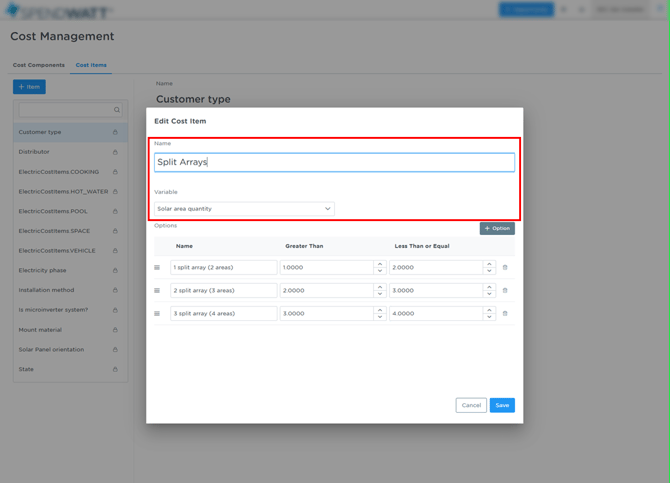
Step 3 — Create Conditional Options
Options allow you to define ranges for the selected variable.
Each option represents a different scenario where pricing may change.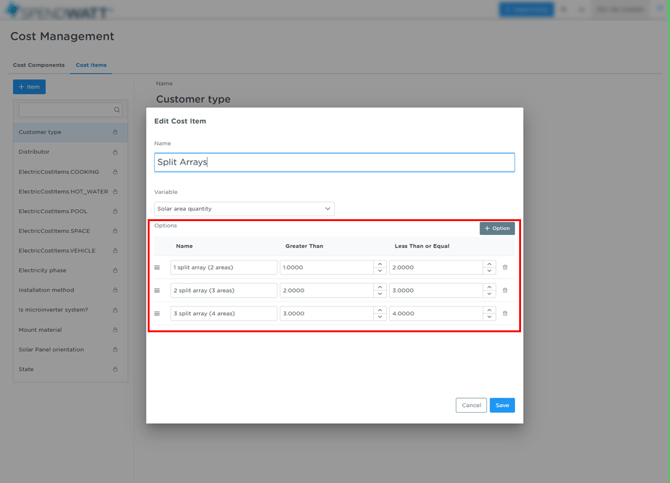 For example:
| Option | Condition | Meaning |
|---|---|---|
| 1 split array (2 areas) | >1 and ≤2 | System uses two panel areas |
| 2 split array (3 areas) | >2 and ≤3 | System uses three panel areas |
| 3 split array (4 areas) | >3 and ≤4 | System uses four panel areas |
These ranges determine which pricing rule should be triggered when used inside a Cost Component.
Step 4 — Save the Cost Item
Once the options are defined, click Save.
The Cost Item is now available to be used when configuring Cost Components.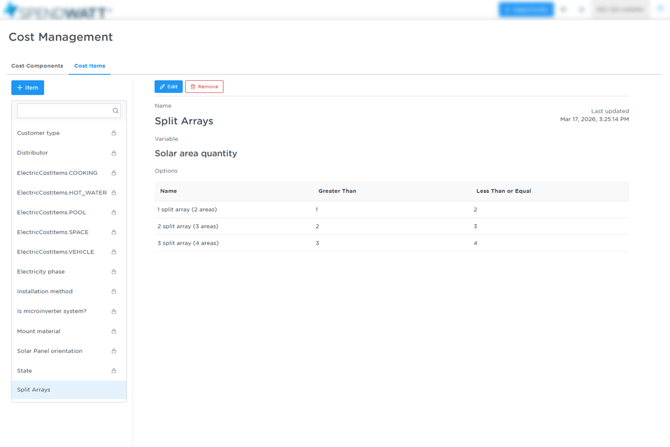 Cost Items themselves do not create budget lines.
Instead, they act as logic triggers that Cost Components reference when applying pricing.
Creating a Cost Component and Applying a Cost Item
Once a Cost Item has been created, it can be used within a Cost Component to apply pricing based on defined conditions.
This is where the system becomes powerful — combining Cost Items (logic) with Cost Components (pricing) to automate budgets.
Step 1 — Create a New Cost Component using a cost item
Navigate to the Cost Components tab and select + Component.
You will be prompted to complete the following fields:
-
Type → e.g. Installation
-
Technologies → Select the relevant technology (e.g. Solar)
-
Quantity → Choose how quantity is calculated (e.g. Fixed)
-
Name → The budget line name (e.g. Split Arrays)
-
Start Active → Toggle on if enabled by default
-
Show Customer → Control visibility in proposal
Step 2 — Add a Price Grid
Within the Cost Component, scroll to the Price Grid section.
This is where pricing logic is configured.
Select:
+ Cost Item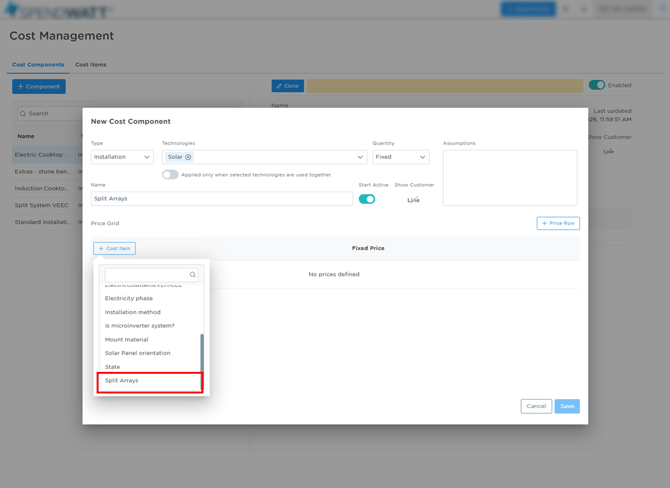 This allows you to attach a previously created Cost Item (e.g. Split Arrays) to this Cost Component.
Step 3 — Link the Cost Item
After selecting the Cost Item, add rows for each option defined in that Cost Item.
Select:
+ Price Row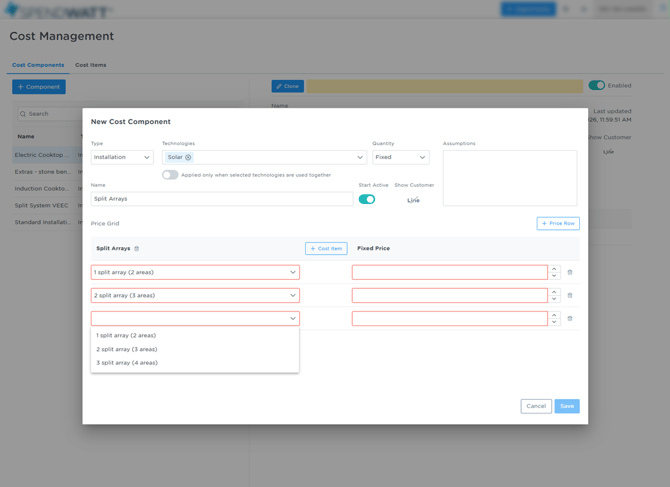
For example:
-
1 split array (2 areas)
-
2 split array (3 areas)
-
3 split array (4 areas)
Each row represents a scenario where different pricing can be applied.
Step 4 — Define Pricing for Each Scenario
Enter the price for each option in the Fixed Price column.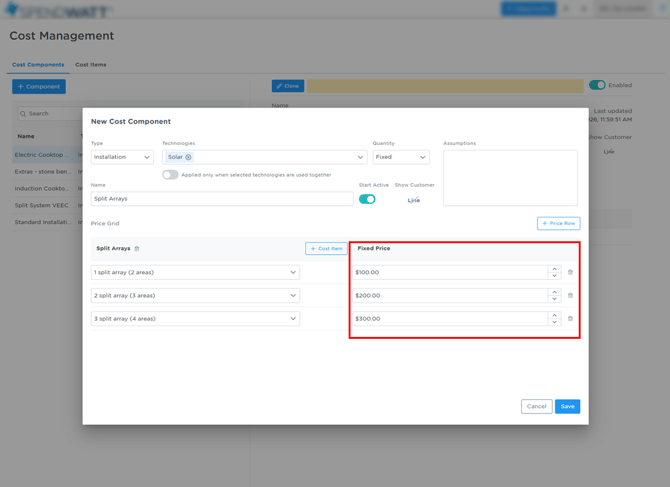 For example:
| Scenario | Price |
|---|---|
| 1 split array (2 areas) | $100 |
| 2 split array (3 areas) | $200 |
| 3 split array (4 areas) | $300 |
This allows pricing to automatically scale based on system complexity.
Step 5 — Save the Cost Component
Once pricing has been entered, click Save.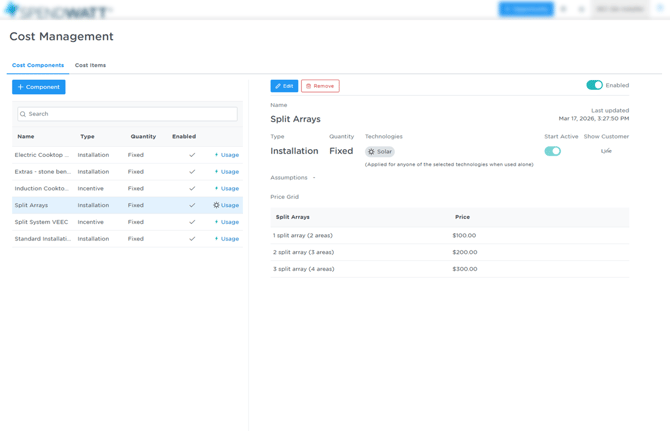
The Cost Component will now:
-
Automatically appear in proposal budgets when relevant
-
Apply the correct pricing based on the Cost Item logic
-
Require no manual adjustment for standard scenarios
How This Works in Practice
When a proposal is created:
-
The system detects the system configuration (e.g. number of solar areas)
-
The relevant Cost Item condition is matched
-
The corresponding price from the Cost Component is applied
-
The budget is automatically populated
Best Practice
Cost Management is most effective when used to configure your standard installation pricing structure.
Once set up correctly:
-
Most proposal budgets will populate automatically
-
Only minor adjustments will be required per job
-
Pricing becomes more consistent across your team
-
Manual quoting errors are reduced